thehostingpool has joined MAXER – what this means for our clients
Announcement from December 2025:
After twenty-five years in business, I’ve decided to take a step back and move into semi-retirement. As part of that decision, I’m pleased to share an important update about the future of thehostingpool.
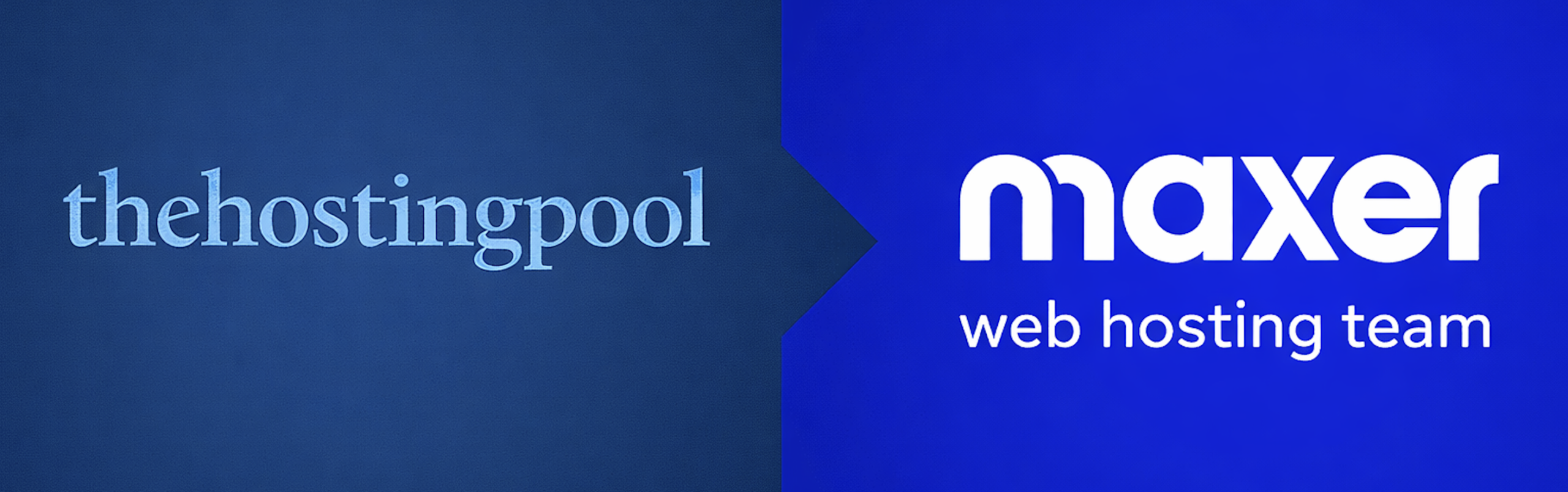
thehostingpool has been acquired by MAXER, who will be taking over the hosting and support side of the business. This is a carefully planned transition, and one I’m genuinely delighted about.
Why Maxer?
For the past fifteen years, Maxer has been our trusted hosting partner, working quietly behind the scenes to keep services running smoothly. They’re an Irish-owned company with a strong reputation for reliable infrastructure and knowledgeable, human support.
When it came to choosing the right home for thehostingpool’s hosting services, Maxer was the natural choice. I trust their team completely and I’m confident they’ll continue to look after clients with the same care and attention you’re used to.
You can learn more about Maxer at www.maxer.com
What does this mean for you?
The transition has been designed to be as simple and seamless as possible.
- Your hosting services and domain registrations have been migrated automatically
- There is nothing you need to do
- There will be no interruption to your website or email
- Your existing services and renewal dates will remain the same
- As part of the transition, your hosting contract will transfer to Maxer Host Ltd (registered in Ireland, company number 513696)
The Hosting Pool closed for Christmas on 22nd December 2025, and the migration work was completed behind the scenes during the holiday period.
You should have received a welcome email from Maxer in the first week of January 2026, which will include your new login details and next steps.
What about web design and creative work?
If we’ve worked together on website design, development, or creative projects, nothing changes there.
The Design Pool will continue to handle:
- website design and builds
- ongoing development work
- creative and design projects
You can find us at www.thedesignpool.com
A personal thank you
I’d like to sincerely thank all of our clients for their support over the years. It’s been a pleasure working with you, and I’m genuinely confident that Maxer will continue to look after your hosting with the same reliability, professionalism, and care.
Wishing you a very Merry Christmas and a peaceful New Year.
Warm regards,
Paul Hayes
Managing Director
thehostingpool